Using Filter Shaders
← All Butter documentationOften when making a component, you'll want to do some kind of shader effect. In p5.js 2.0, this is easier than ever thanks to p5.strands, a system that lets you write shaders in JavaScript! In Butter, this is also the primary way to write your shaders so that they will continue to work as the rendering system evolves over time.
Let's start by creating a component that renders an image into its bounds:
let media
async function setup() {
  media = await loadImageOrVideo('')
  createCanvas(windowWidth, windowHeight, WEBGL)
}

function draw() {
  clear()
  imageMode(CENTER)
  image(
    media,
    0, 0, width, height, // Fill screen
    0, 0, media.width, media.height,
    COVER
  )
}
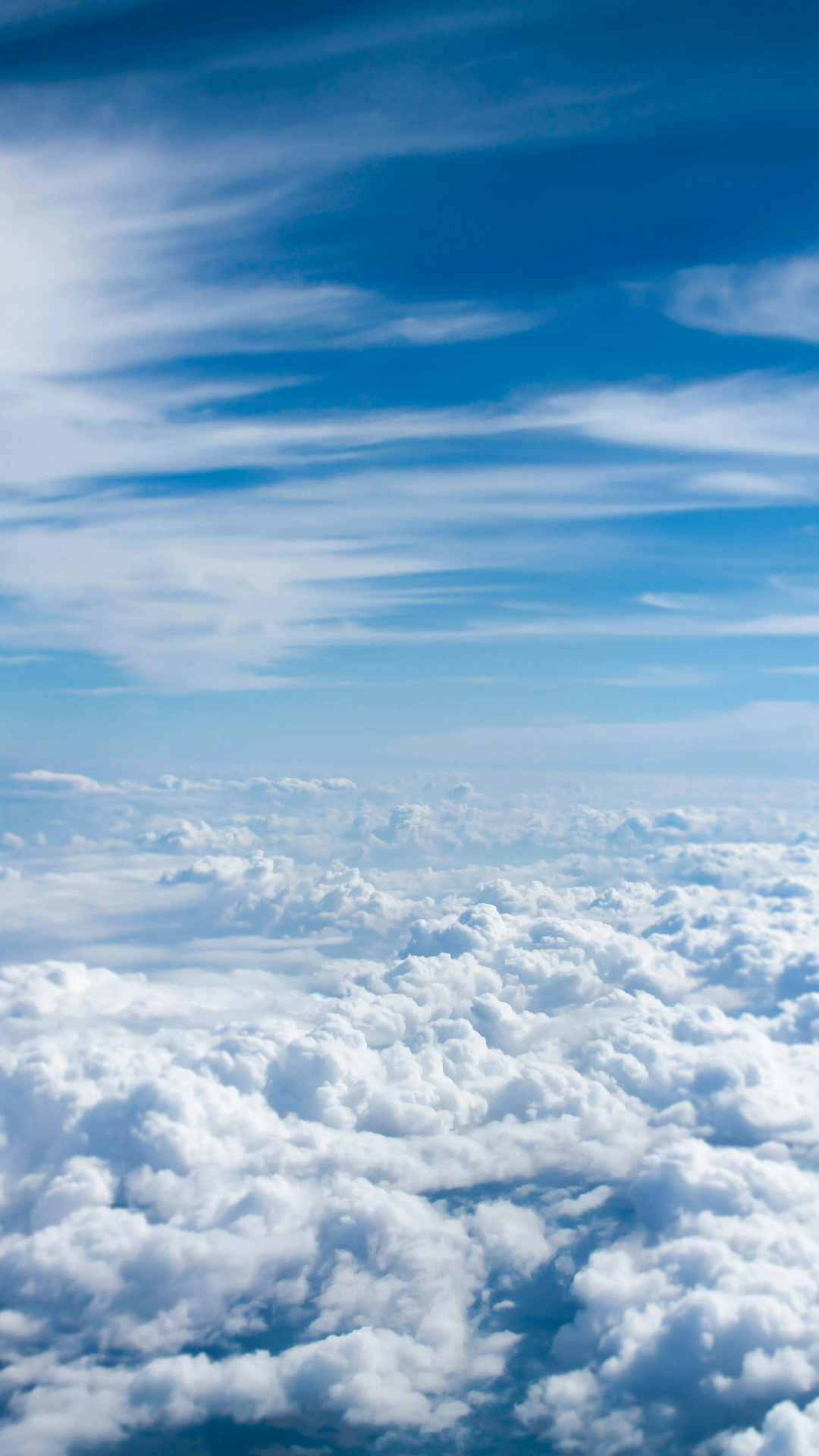
If you run the sketch and pick an image, it will cover the component. Great! Let's now do something to the image.
Basic color shifting
Let's create a new filter shader. We do this by calling p5's buildFilterShader() function. We pass in a callback function where we update parts of the base shader. Then we can later apply it to the canvas by calling filter(yourShaderVariable).
Inside of every base shader, there are hooks into different parts of the shader's functionality that we can tap into and modify. Filter shaders have just one hook, filterColor. This is the one that updates every pixel of the image. Other shaders, such as material shaders, have more hooks where you can update the positions of each vertex or update the properties of the material per pixel. In our case, we're going to use that filterColor hook.
A hook takes in a function that returns a new value for the hook. In our case, the filterColor block is applied to each pixel, and needs to set the final color of that pixel. In shaders, colors are vectors with values between 0 and 1 instead of the regular 0 to 255 range. The filterColor object has useful properties like filterColor.canvasSize and filterColor.texCoord (a vector with values between 0 and 1 letting you know where on the image the pixel is), and filterColor.canvasContent, an image of the current state of the canvas.
Generally we'll want to grab the color of the canvas at the current pixel with getTexture(img, coord). Here's an example where we do that, and then additionally darken the color:
let media
let effect

async function setup() {
  media = await loadImageOrVideo('')
  createCanvas(windowWidth, windowHeight, WEBGL)

  effect = baseFilterShader().modify(() => {
    filterColor.begin()
    let origColor = getTexture(
      filterColor.canvasContent,
      filterColor.texCoord
    )
    origColor.rgb *= 0.5 // Darken
    filterColor.set(origColor)
    filterColor.end()
  })
}

function draw() {
  clear()
  imageMode(CENTER)
  image(
    media,
    0, 0, width, height, // Fill screen
    0, 0, media.width, media.height,
    COVER
  )
  filter(effect)
}
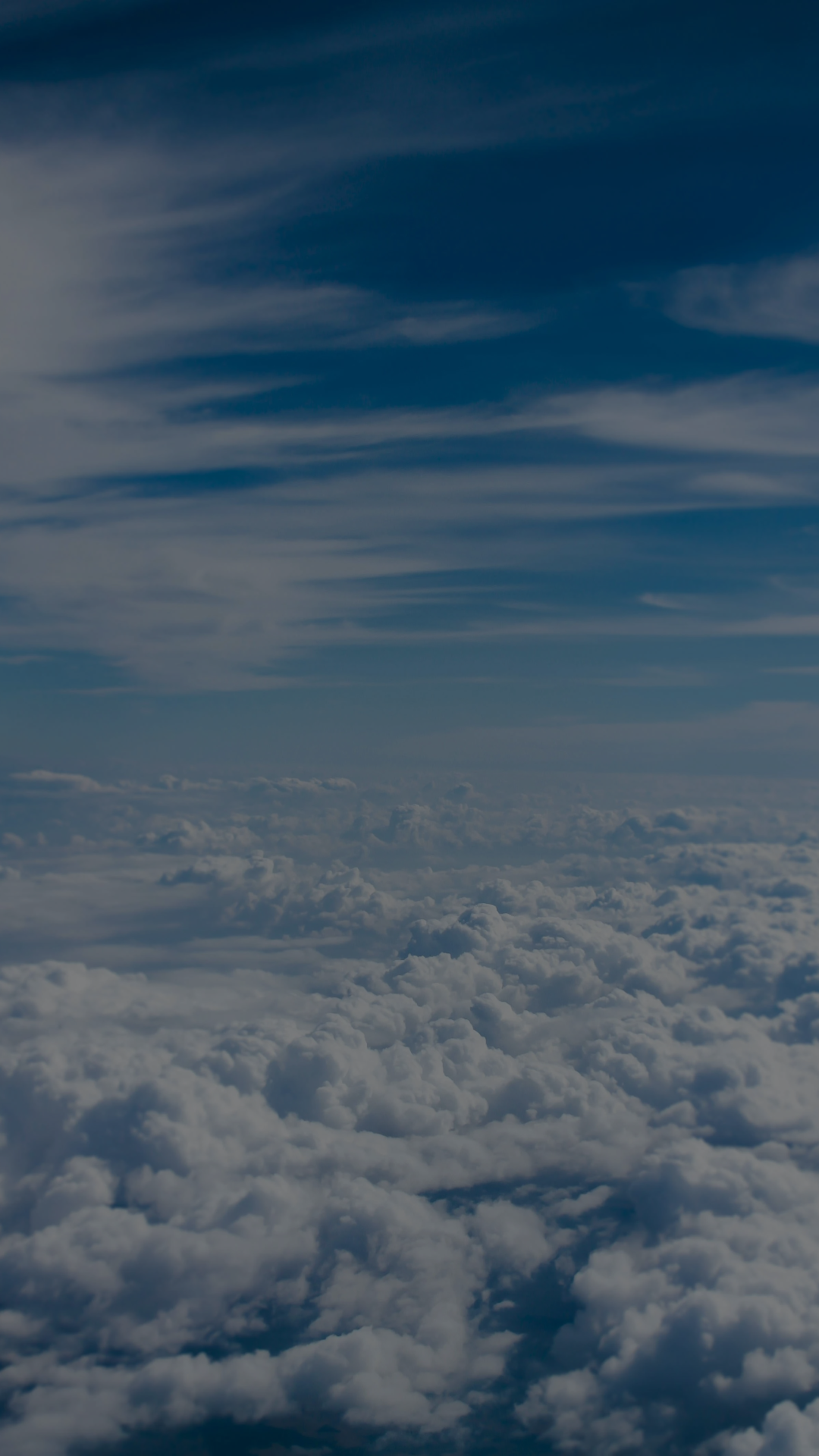
Animated filters
Often your effects will need to be animated, so you'll want access to the time. But since shaders run on the GPU, you don't immediately have access to the other variables in your program. When you need to pass outside values into your shader, those are called uniform values, and you can create them inside your shader using a uniform*-prefixed function. We'll use this to get the time, but you might also end up using it to access the value of a slider, such as by doing uniformFloat(() => mySlider.value()). You would use the uniformFloat(() => millis()) format to pass in a single number, or uniformVec2(() => [width, height]) to pass in a vector, or other numbers for larger vectors.
Here's an updated shader used to vary the brightness over time:
effect = buildFilterShader(() => {
  const time = uniformFloat(
    () => millis() * 0.005
  )
  filterColor.begin()
  let origColor = getTexture(
    filterColor.canvasContent,
    filterColor.texCoord
  )
  origColor.rgb *= 0.5 + 0.2 * sin(time)
  filterColor.set(origColor)
  filterColor.end()
})

Warp filters
A common thing you'll want to do in a filter shader is warp the input. This means not sampling the color of the canvas right at filterColor.texCoord, but instead modifying the coordinate a bit first. For example, to get a subtle wiggling like a fast-forwarding VHS, you might apply some noise to the x coordinate based on its initial y value (meaning, whole rows of pixels get shifted, and the shift is horizontal.)
When you shift too much, you might start to see the transparent pixels from outside of the initial image. Sometimes that's fine, but in this case, I'd like the edges to remain crisp, and have the colors stretch near the edges. So we'll clamp the input coordinates to be juuuuust inside of the 0-1 range.
effect = buildFilterShader(() => {
  const time = uniformFloat(
    () => millis() * 0.005
  )
  filterColor.begin()
  let warpedCoord = filterColor.texCoord
  warpedCoord.x += 0.003 * noise(
    warpedCoord.y * filterColor.canvasSize.y * 0.1,
    time
  )
  warpedCoord.x = clamp(
    warpedCoord.x,
    0.001,
    0.999
  )
  filterColor.set(getTexture(
    filterColor.canvasContent,
    warpedCoord
  ))
  filterColor.end()
})
Chromatic aberration
Another common effect you'll see is to sample more than once per pixel. Maybe you want to have some chromatic aberration, where the colors spread out a bit near the edges of the canvas. One way to do that is to sample multiple times at slightly different coordinates, and then combine them for the final output.
While doing so, in p5.strands, you might find it helpful that you can create vectors by just creating arrays, so [1, 2, 3, 4] is a 4-component vector. Unlike in regular JavaScript, you can also use math operators like + or * between vectors, and it will do that operation on each component of the two vectors. In the example below, this is used to add a slightly differently scaled offset to coordinates, and then recombine the final output into a single color vector.
effect = baseFilterShader().modify(() => {
  const time = uniformFloat(
    () => millis() * 0.005
  )
  filterColor.begin()
  let warpedCoord = filterColor.texCoord
  warpedCoord.x += 0.003 * noise(
    warpedCoord.y * filterColor.canvasSize.y * 0.1,
    time
  )
  // Helper to clamp coordinates
  const limit = function (coord) {
    return [clamp(coord.x, 0.001, 0.999), coord.y]
  }

  // Every pixel gets a slight RGB-based
  // shift, but the shift gets stronger
  // at the bottom of the canvas
  const rgbOffset = [-0.2 - pow(warpedCoord.y, 4), 0]

  // Sample three times with offsets
  const redSample = getTexture(
    filterColor.canvasContent,
    limit(warpedCoord)
  )
  const greenSample = getTexture(
    filterColor.canvasContent,
    limit(warpedCoord + 0.05 * rgbOffset)
  )
  const blueSample = getTexture(
    filterColor.canvasContent,
    limit(warpedCoord + 0.1 * rgbOffset)
  )

  // Combine the channels
  filterColor.set([
    redSample.r,
    greenSample.g,
    blueSample.b,
    redSample.a
  ])
  filterColor.end()
})
Further reading
Check out more examples and tutorials that use p5.strands:
- The buildFilterShader docs
- Introduction to p5.strands by Luke Plowden, a tutorial which includes both filter shaders and also materials and shader particles
- Redwood Forest by Dave Pagurek, a sketch that uses a grainy blur filter and shader particles