Getting Started
← All Butter documentationIn Butter's video editor, every component is actually a self-contained p5.js sketch. This gives you the flexibility to make complex visuals that users can customize via fields in a way that would be difficult to build from small pieces in something like After Effects.
Creating a component
Start by creating a project in Butter.
Once you're in Butter Studio, you'll see a Code tab in the left sidebar. When you click into it, this is where your custom code components will live. Click the big New button to create your first one! Give it a name, and then click Create.
It will create a new component in your project and open up a code editor:
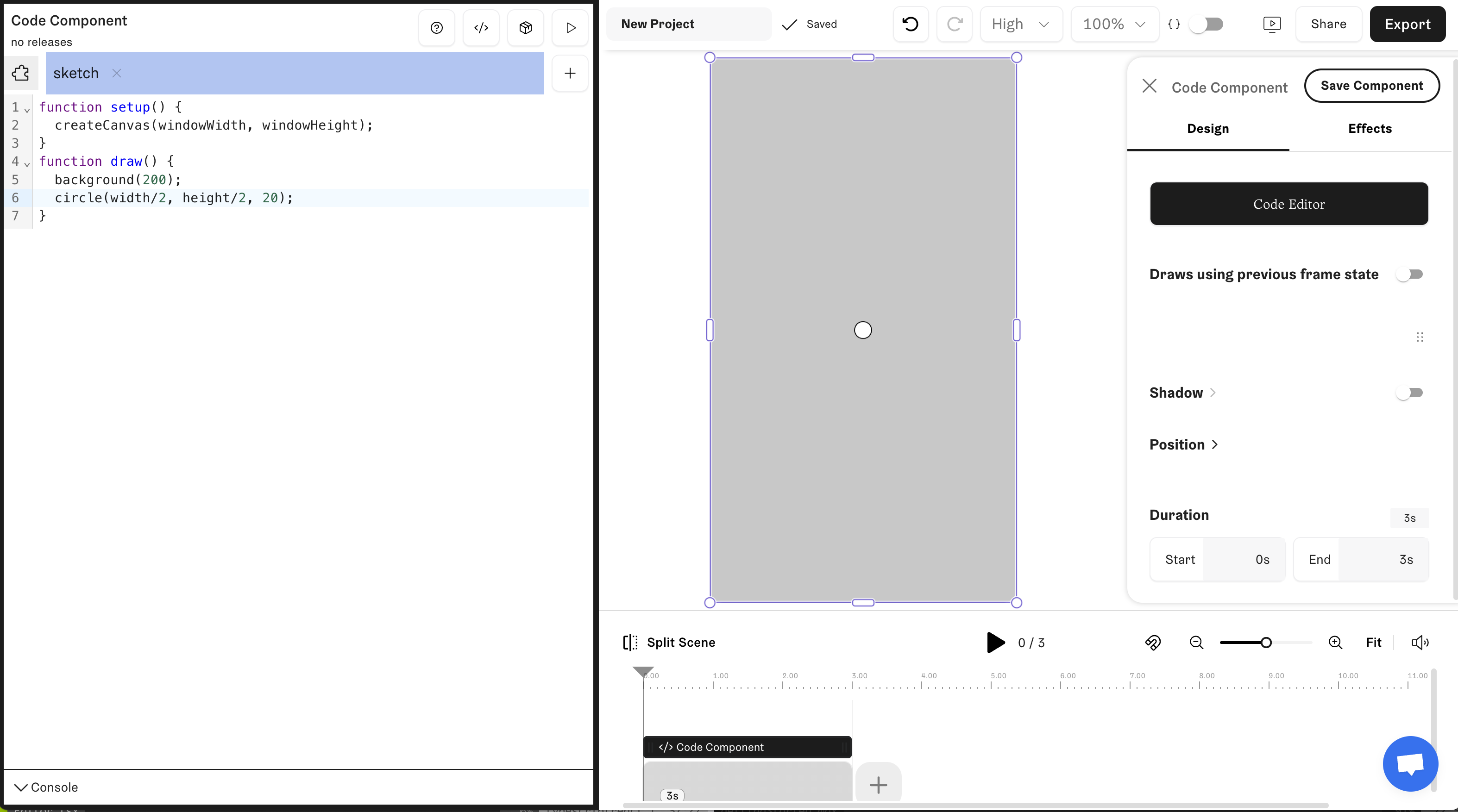
When you make changes in the code, click the Build & Run button (▶) in the top right of the code editor or hit Cmd-Enter to see your changes on canvas.
Adding Fields
Add user-editable fields to your component by using standard p5.js load* and create* functions like createSlider(). They will show up in the right sidebar when the component is selected. In that right sidebar, you can give the fields labels, and rearrange them into collapsible sections.

Using libraries
If you want to use a library in your component, click the puzzle piece icon in the top left of the code editor.
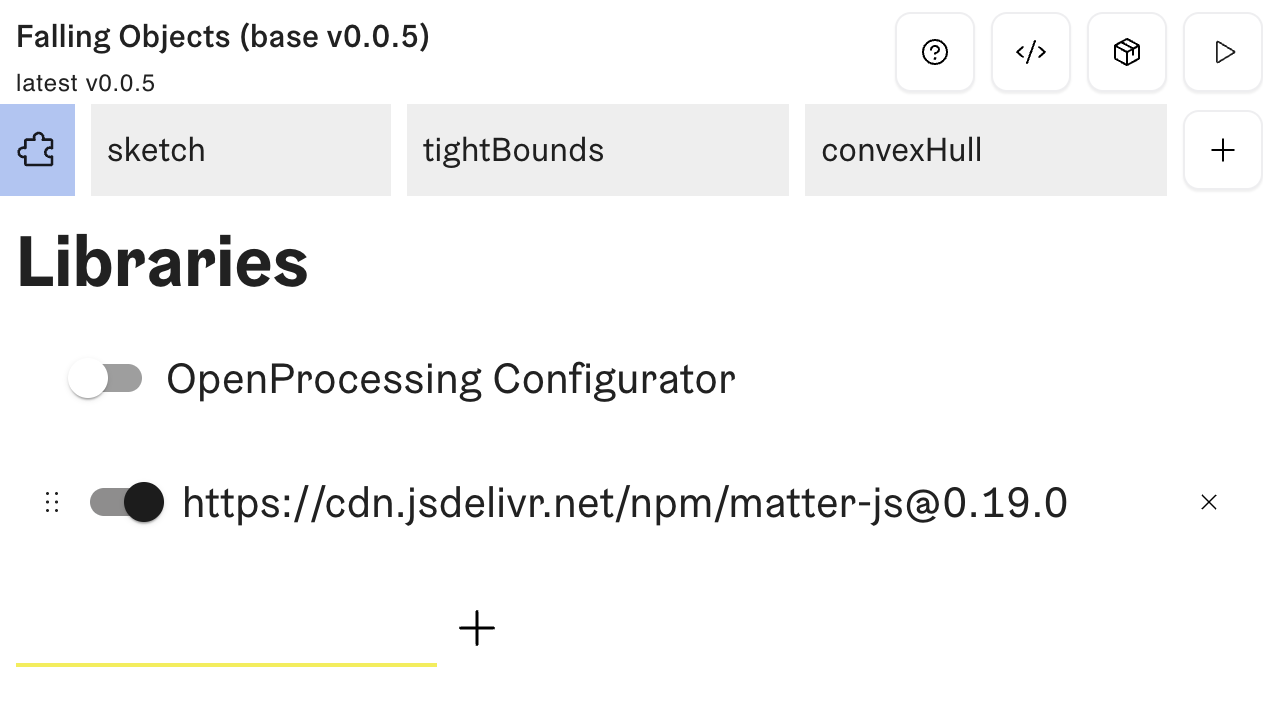
From here, you can turn on and off libraries for your sketch. If you're starting from a sketch that was on OpenProcessing, you may want to turn on the OPC libary to that starts out in the list. For other libraries, you can paste a CDN URL into the text field and click the + button to add it.
Animate directly from time variables
Although in the wild, p5.js sketches only run forward in time, in Butter, users can seek anywhere on the timeline. This means that sketches will work best if draw functions determine what to show only based on time variables such as frameCount or millis(). For example:
Don't
let y = 0;

function setup() {
  createCanvas(
    windowWidth,
    windowHeight
  );
}
function draw() {
  clear();

  // Move the circle down
  // each frame by updating
  // state. This is hard to
  // rewind.
  y += 2;

  circle(width/2, y, 20);
}
Do
function setup() {
  createCanvas(
    windowWidth,
    windowHeight
  );
}
function draw() {
  clear();

  // Move the circle down
  // each frame by directly
  // calculating its position
  const y = 2 * frameCount;

  circle(width/2, y, 20);
}
There will always be some kinds of effects where using intermediate state is necessary. Try to only use it for those cases. Some examples include physics simulations and visual feedback.
If you do need to update state over time, make sure you try to account for the time passed between frames. In playback in Studio, frames will be dropped to keep up with audio. If you pause or seek somewhere, Butter will briefly show a loading spinner to make sure you see the exact state for that frame, but this is not always possible in playback. To avoid state from drifting too far, take deltaTime into account when doing state updates. For example:
// Don't do a fixed time step
position = position.copy().add(velocity.copy().mult(1 / 30))

// Instead, use deltaTime:
position = position.copy().add(velocity.copy().mult(deltaTime / 1000))
Prefer WebGL mode
In general, sketches will run faster in WebGL mode, especially if you (or your users, by applying an effect in Butter) apply filter shaders to your content. Consider starting your new component in WebGL mode and only using 2D mode if you need some 2D-specific features, such as the DIFFERENCE blend mode.